Debug / Troubleshoot
This section explains options available to help diagnose and resolve rendering issues in BRQ. These settings are particularly useful when working with complex scenes, custom add-ons, or large render jobs.
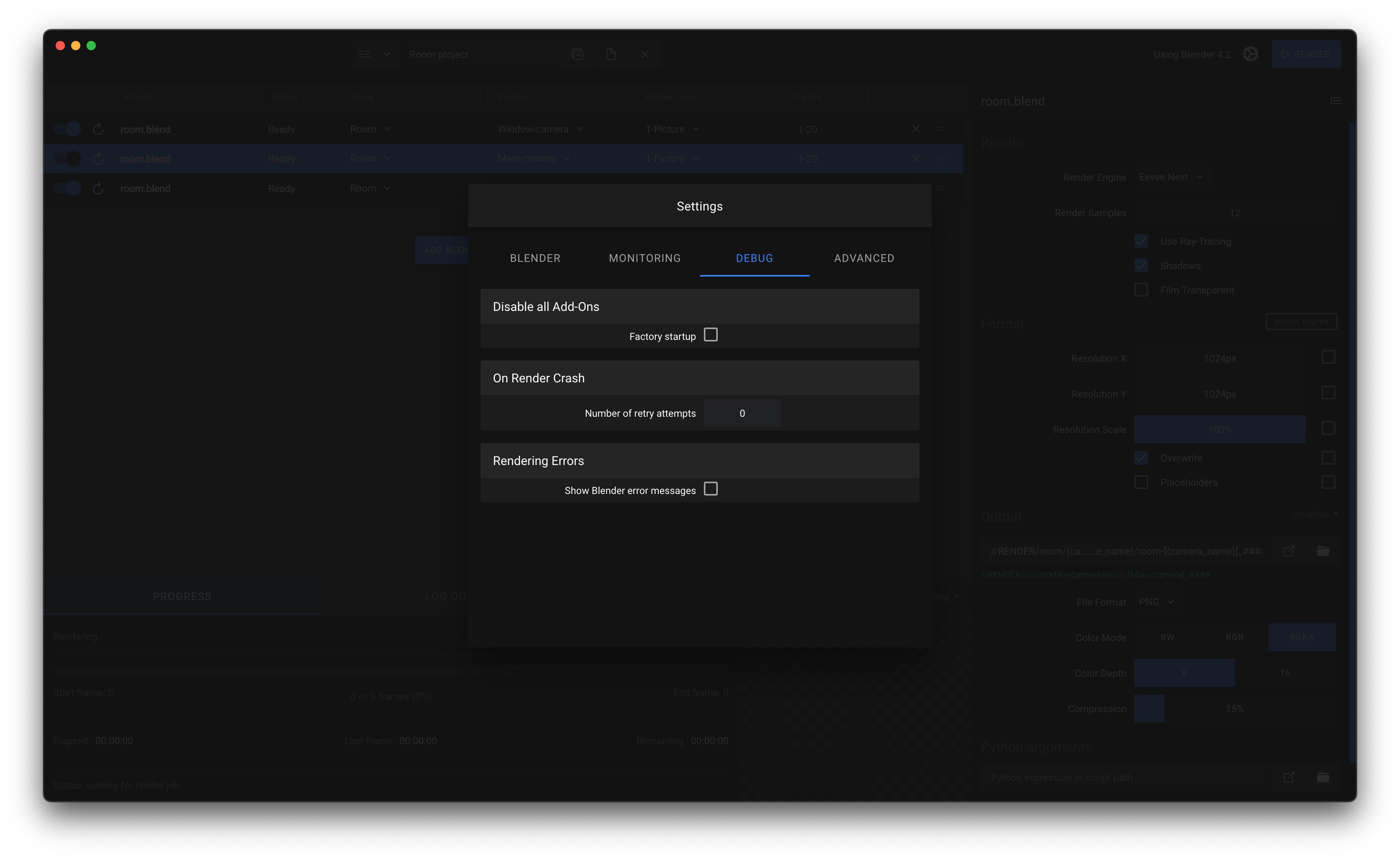
Disable All Add-Ons
BRQ can be run in Factory Startup mode to temporarily disable all add-ons and user preferences. This is useful for checking whether a crash or error is caused by a specific add-on or corrupted preferences.
Factory startup — Runs Blender with the factory startup flag, ignoring all user add-ons and preferences. Use this mode if you encounter persistent crashes or unexpected behavior that does not occur in a clean Blender session.
Note
Some third-party add-ons are not properly designed to run in background mode or headless rendering. These add-ons can cause freezes, crashes, or unexpected behavior during automated rendering. Disabling all add-ons can help isolate and fix these issues.
On Render Crash
You can configure BRQ to automatically retry renders that fail, which is useful for unstable scenes or network rendering environments.
Number of retry attempts — If a render crashes, BRQ will attempt to re-render the item the specified number of times before moving on to the next item in the queue. Valid range: 0–10 attempts. Increasing retry attempts can help complete renders in cases of transient system issues, such as GPU memory spikes or background process interference.
Rendering Errors
BRQ can display detailed error messages to help troubleshoot issues during rendering.
Show Blender error messages — Display every error message sent by Blender or by add-ons. This includes Python exceptions, missing file errors, or internal Blender errors. Reviewing these messages can help identify problems such as missing textures, incompatible add-ons, or configuration errors.
Additional Tips
Always test new scenes or add-ons with Factory Startup first to rule out conflicts with existing add-ons.
Keep an eye on error messages for hints about memory limitations, especially when rendering high-resolution or simulation-heavy scenes.
Use small test renders before committing to large-scale render jobs to prevent wasted time on crashes.